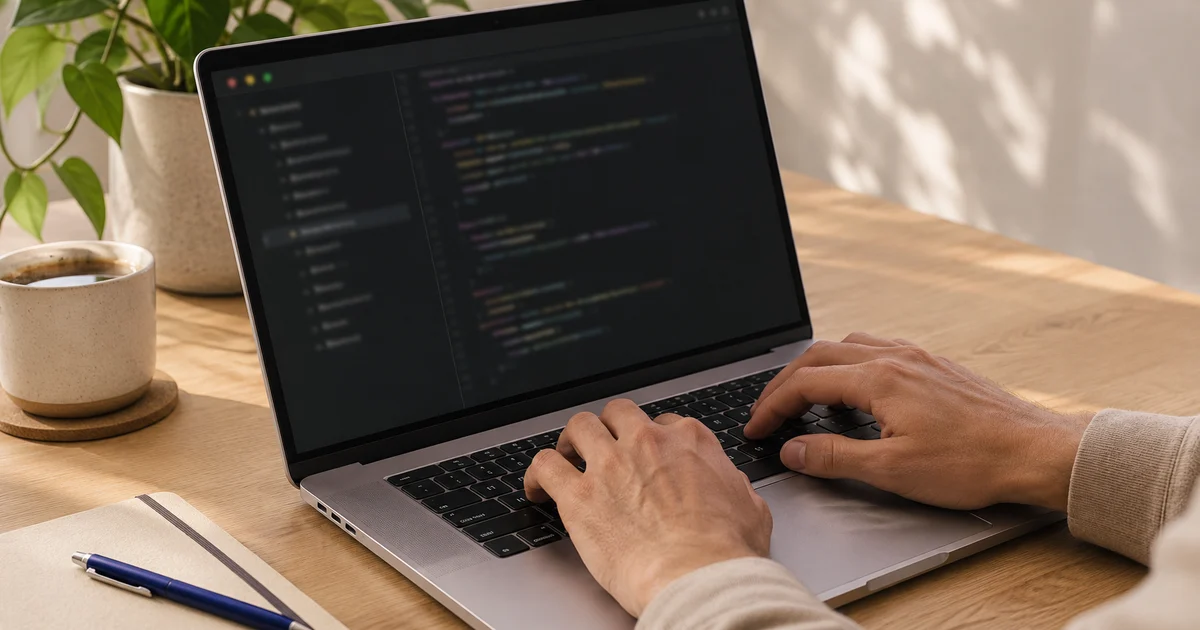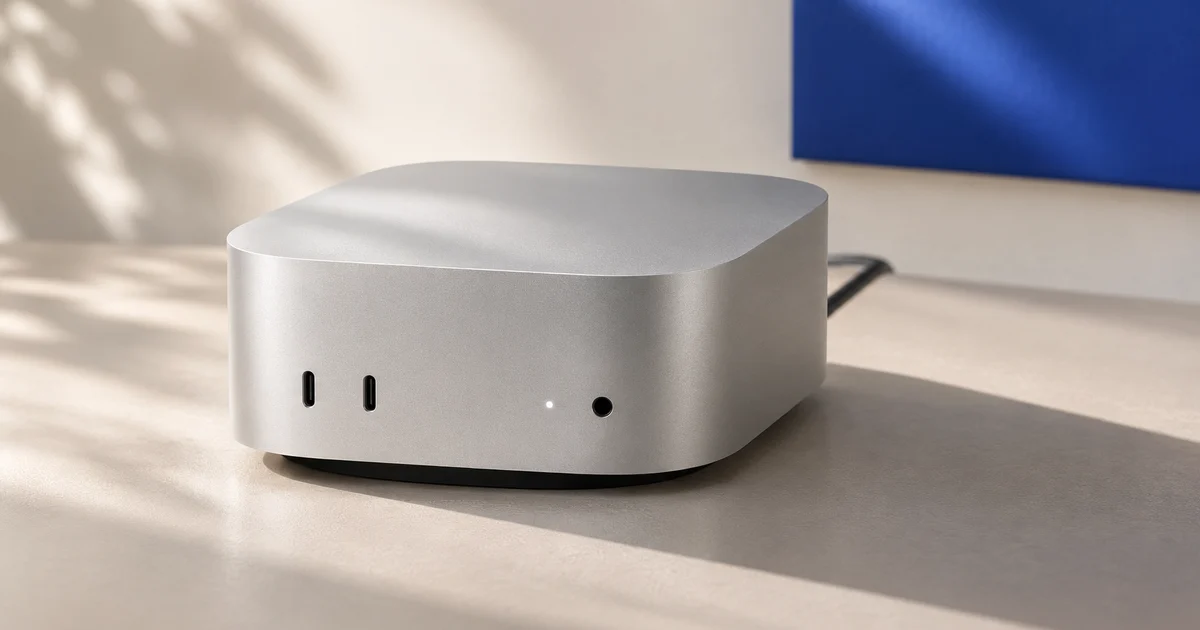
A remote Mac needs to feel responsive during your actual working hours. Seoul's location may help some Asia-Pacific connections, but Hong Kong and mainland China users still depend on their carrier, routing and local network. A reported 30 ms result describes a particular measurement; it is not a guarantee for another connection. Use this checklist to record your own results before choosing a rental.
Keep the comparison fair
Use your usual computer and remote-desktop application. Record the client version, connection method, display resolution and quality settings. Start with a wired connection where possible, then repeat on the Wi-Fi you normally use. Compare a quieter period with your busiest working period on another day. Keep the same host, application and task in each run.
Pause unrelated downloads for a baseline, then repeat with your normal background workload. Agree on what matters beforehand: readable code, comfortable typing, smooth document scrolling or timely file transfers. These are different requirements.
Measure the relevant network path
Ask for an approved test endpoint associated with the remote Mac. If it accepts ICMP, run a short sample from your local computer, replacing HOST with that endpoint:
macOS / Linux: ping -c 100 HOST
Windows: ping -n 100 HOST
Save the average and maximum round-trip time, lost replies and test time. A timeout can reflect ICMP filtering, so confirm how the endpoint is configured before treating missing replies as application packet loss. A nearby speed-test server measures a different destination. If the desktop application reports a relay connection, a direct ping to the Mac may also take a different path.
Keep a client's jitter reading with its tool name and definition. RFC 5481 explains that delay variation has several formulations; a ping range and an application's jitter value should not be treated as interchangeable measurements.
Separate the desktop from the network
Ping does not time a keystroke becoming visible on your screen. Screen capture, encoding, transport, decoding and display also contribute. Parsec's diagnostics documentation, for example, distinguishes network, encoding and decoding latency. Use comparable statistics when your chosen client exposes them; this is not a requirement to use Parsec.
Repeat the same task at your intended resolution, then at a lower supported resolution. Change one setting at a time: quality, frame rate, codec or display count. Record the actual stream settings if they adapt automatically. Check small text as well as motion. On supported Standard Mac-to-Mac connections, Apple documents Adaptive Quality and Full Quality; the available controls depend on the connection mode.
Check both transfer directions
Desktop images travel from the remote Mac's upload connection to your local download connection. Sending a file the other way uses your local upload capacity. Test both directions with the same non-sensitive file and record its size, elapsed time and units. Observe the desktop while transferring, because a fast file transfer can still coincide with sluggish interaction. A remote browser downloading a file tests another route again.
Run a realistic work session
- Terminal: type a short command such as
date, use arrow keys and repeat. Note delayed feedback or sudden pauses. - Editor: open a representative project, type, select text and search within a file. Keep a familiar local session as a subjective reference.
- Scrolling: move through a long document and an image-heavy page. Watch for unreadable text during motion, blockiness and prolonged redraws.
- Transfers: upload and download the test file while repeating the typing task. Separate transfer duration from desktop responsiveness.
- Reconnection: save your work, disconnect only the client, then reconnect. Record the time, authentication steps and whether the expected session is present.
Keep build duration, website loading and AI response time in separate notes: they can be slow even when desktop control is responsive. If a problem appears, repeat with one change, such as wired networking or lower resolution, before drawing a conclusion.
Copy this blank test record
Date, time and time zone: ____
Location / carrier / wired or Wi-Fi: ____
Host / client and version / direct or relay: ____
Resolution / frame rate / quality / codec: ____
Ping sample size / average / maximum / lost replies: ____
Client jitter metric and definition, if available: ____
Client network / loss or retransmits / encode / decode: ____
Typing / editing / scrolling observations: ____
Local to Mac: file size / time / transfer rate: ____
Mac to local: file size / time / transfer rate: ____
Desktop behaviour during transfers: ____
Reconnect time / authentication / session state: ____
Acceptable for my work? Remaining issue / next test: ____
Choose from repeatable results
Judge the intended workflow across your normal hours, not one best sample. Keep hardware recovery separate from everyday desktop testing: KVM and remote power are recovery tools, and still require functioning infrastructure. VPCKR offers a Seoul-based dedicated Mac mini with full macOS and these controls. Review the Mac mini service and Korea Mac mini rental guide, then ask which evaluation method is available and share your completed record.